
This is new and very cool!
QR codes make a special type of "barcode" or design for links to content.
You must have a smart phone with a QR reader and when the QR code reader on your smart phone "reads" the QR code, it will open up the link (whatever it is) on your phone.
All you have to do (once you have the reader downloaded on your smartphone) is hold your phone
(You can get readers from this link http://www.mobile-barcodes.com/qr-code-software/)
Download the application for your phone type.
Try this one out ( you can also go to this link to see what you should get click here
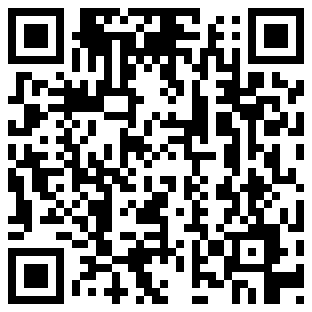
These instructions come from http://androinica.com/2009/11/05/qrcodes/ and are for Android phones but the genral principle is the same for all phones (some you have to take a picture of the QR code).
After the app is installed, launch the Barcode Scanner and you’ll see a red line across the screen. Move the phone forward to make the viewfinder zoom in on the QR code. The light from your computer screen will occasionally make it difficult to read. If that occurs, back up from the screen and then slowly move forward until the QR code comes into focus.

Once the code is read, a notification will come up that there is a Found URL. Click the “Open Browser” button and it will then bring up your application in the Android Market. Voila, you’ve got your app link. Now you know how to use QR codes.

There have been issues with certain users being unable to scan QR codes because of their phone model (i.e. Galaxy can’t read it but a G1 can). If you have trouble scanning a code, try closing the application, make sure your camera lens is free of smudges, and then reattempt. If that doesn’t work, you’ll just have to search the Android Market and cross your fingers. Good luck!
These instructions come from http://androinica.com/2009/11/05/qrcodes/
QR codes make a special type of "barcode" or design for links to content.
You must have a smart phone with a QR reader and when the QR code reader on your smart phone "reads" the QR code, it will open up the link (whatever it is) on your phone.
All you have to do (once you have the reader downloaded on your smartphone) is hold your phone
(You can get readers from this link http://www.mobile-barcodes.com/qr-code-software/)
Download the application for your phone type.
Try this one out ( you can also go to this link to see what you should get click here
- Open the application on your phone
- See more instructions below
These instructions come from http://androinica.com/2009/11/05/qrcodes/ and are for Android phones but the genral principle is the same for all phones (some you have to take a picture of the QR code).
After the app is installed, launch the Barcode Scanner and you’ll see a red line across the screen. Move the phone forward to make the viewfinder zoom in on the QR code. The light from your computer screen will occasionally make it difficult to read. If that occurs, back up from the screen and then slowly move forward until the QR code comes into focus.
Once the code is read, a notification will come up that there is a Found URL. Click the “Open Browser” button and it will then bring up your application in the Android Market. Voila, you’ve got your app link. Now you know how to use QR codes.
There have been issues with certain users being unable to scan QR codes because of their phone model (i.e. Galaxy can’t read it but a G1 can). If you have trouble scanning a code, try closing the application, make sure your camera lens is free of smudges, and then reattempt. If that doesn’t work, you’ll just have to search the Android Market and cross your fingers. Good luck!
These instructions come from http://androinica.com/2009/11/05/qrcodes/


